Omoplata Bridge
Download and install Omoplata Bridge
Omoplata Bridge is a small app for your computer. With it you send your SEPA direct debits from Omoplata to your bank and fetch your bank statements. Download it here, install it - and then connect it to your club.
Download
You find the same downloads in Omoplata under Settings › API keys.
Install
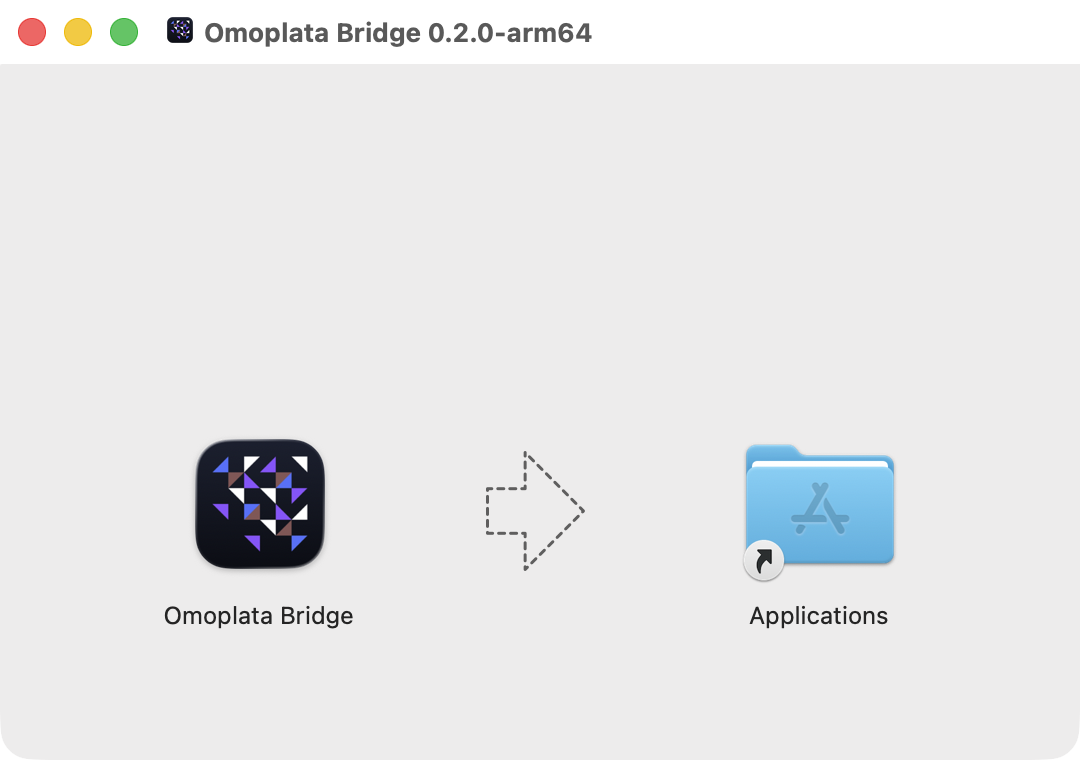
- Open the downloaded file Omoplata-Bridge-….dmg.
- Drag Omoplata Bridge onto the Applications folder.
- Open Omoplata Bridge from the Applications folder or with Spotlight.
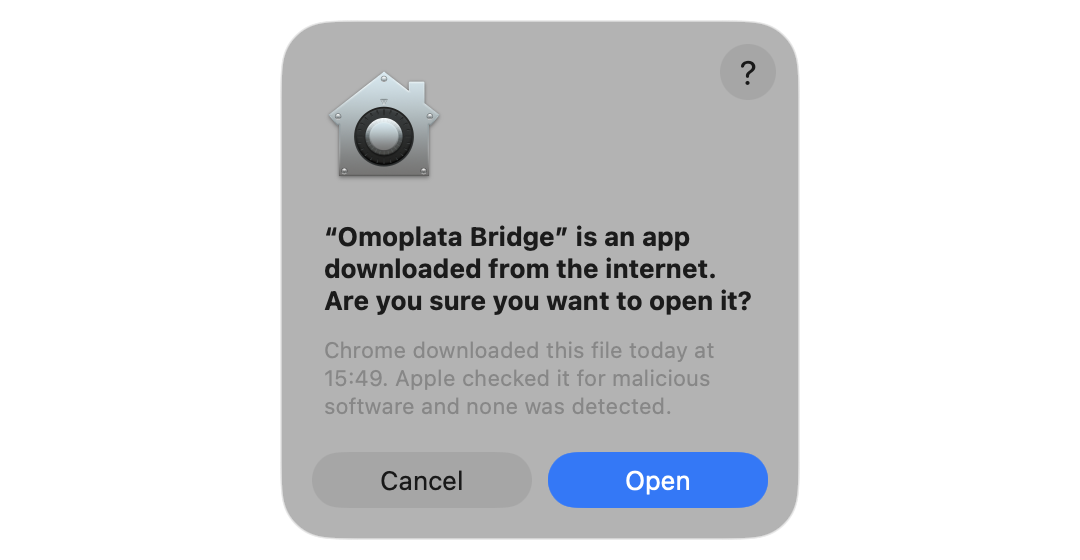
- The first time, macOS asks whether you want to open the app downloaded from the internet. Click Open.
When you open it for the first time, the Bridge shows Not set up and the button Connect with Omoplata. How to go on from there is described in Configure Omoplata Bridge.
Good to know
- Updates: The Bridge keeps itself up to date. When a new version is ready, it offers a restart or installs it the next time you quit.
- Start with the computer: Under Settings › General you decide whether the Bridge starts when you log in to your computer.
- Several computers: You can install the Bridge on several computers. Each one is connected to your club on its own.
- Uninstall: First disconnect in the Bridge under Settings - this deletes the bank login details from this computer. Then remove the app like any other.