Communication
This is where you set up WhatsApp for your club. Once connected, WhatsApp chats land in the Inbox, and Omoplata can send leads their automatic trial class messages by WhatsApp.
- Your own club number: members write to the number they know. If you like, it keeps running in the WhatsApp Business app on your phone.
- Official interface: Omoplata uses Meta's WhatsApp interface, so there is no risk of your number being blocked.
- AI assistant (optional): answers common questions and books trial classes, around the clock.
Connecting a number
You connect your club's WhatsApp number once. After that, all messages land in Omoplata. It takes about 5 minutes.
You need:
- the Facebook account you use to manage your club's business portfolio at Meta,
- the phone with the club number,
- a payment method at Meta (see costs).
Start at Settings > Integrations, WhatsApp tab.
Which route is yours?
| Your club number … | Then |
|---|---|
| runs in the WhatsApp Business app | Connect an existing number |
| runs in regular WhatsApp | first switch to WhatsApp Business, then Connect an existing number |
| has no WhatsApp yet | Connect a new number |
| runs with another provider (Twilio, 360dialog …) | Connect a new number |
Which app do you have? The WhatsApp Business app has a B in the green speech bubble. Regular WhatsApp has a phone handset.
Meta's screens
Part of the setup happens on Meta's pages. They show in your Facebook account's language. In English the buttons are Continue, Next, Confirm and Finish. The videos show everything in German.
Connect an existing number
This is the route we recommend. You keep the WhatsApp Business app on your phone and keep answering there as before. Omoplata joins in: what you write on the phone shows up in Omoplata, and the other way round. Meta calls this Coexistence.
Only with the WhatsApp Business app
This only works when the number runs in the WhatsApp Business app. It does not work with regular WhatsApp. Switch the number first: Switch from WhatsApp to WhatsApp Business.
Check first:
- The WhatsApp Business app is up to date (version 2.24.17 or newer).
- The number has been running in the WhatsApp Business app for at least 7 days.
Click “Connect an existing number”
Omoplata opens Meta. Sign in with your Facebook account and click Continue.
Pick the number
Click the phone number field and pick your club number from the list.
Confirm on your phone
Meta asks you to confirm the connection in the WhatsApp Business app. Follow the steps on screen. The app also asks whether to share your chat history. Say yes, and your recent conversations show up in Omoplata too.
If the number was connected before, this step is skipped, as in the video.
Confirm your details at Meta
Click Next through business details, business portfolio, name and time zone. At the end, Confirm. Meta needs a moment. Finish takes you back to Omoplata.
Pick the number in Omoplata
If you have more than one number, click Use this number next to the right one. Then you see WhatsApp connected. New messages now land in the Inbox.
What changes in the app
You use the app as before. Meta changes a few things:
- Groups stay in the app. They don't show up in Omoplata.
- Disappearing messages, view once and live location are turned off in one-to-one chats.
- Broadcast lists become read-only. You can't create new ones.
- Linked devices (e.g. WhatsApp Web) are logged out. You can link them again. The WhatsApp app for Windows stops working.
- Open the app on your phone at least every 14 days. Otherwise Meta disconnects it.
Switch from WhatsApp to WhatsApp Business
If your club number runs in regular WhatsApp, switch it first. Your chats come along.
Back up your chats
In regular WhatsApp: Settings > Chats > Chat backup > Back up now.
Install WhatsApp Business
Download WhatsApp Business from the App Store or Google Play. It is free and made by Meta.
Use the same number
Open WhatsApp Business. It recognises your number. Confirm it and enter the code from the SMS.
Bring your chats along
The app offers to take over your chats. Tap Restore or Continue.
After that, regular WhatsApp no longer works on this number. Use the WhatsApp Business app for 7 days, then connect it to Omoplata.
Don't go back to regular WhatsApp
If you later register the number in regular WhatsApp again, Meta disconnects it from Omoplata.
Connect a new number
For a number that has no WhatsApp yet. Afterwards it runs only in Omoplata, not in an app on your phone. You need the phone once, to receive a code by SMS or call.
Click “Connect a new number”
Omoplata opens Meta. Sign in with your Facebook account and click Continue.
Enter the number
Choose Enter a new phone number and your country. Type the number. Choose how the code comes: Text message or Phone call. Click Next.
Enter the code
Enter the code you received.
Confirm your details
Pick your business portfolio, confirm name and time zone. Then Confirm and Finish. You're back in Omoplata.
If Omoplata then shows "not verified", you can verify the number right there: request a code by SMS or call and enter it.
Only if your number already runs with another provider
For example Twilio, 360dialog or respond.io. Then you also use Connect a new number.
First turn off two-step verification (the 6-digit PIN) at your old provider. Otherwise Meta blocks the move and the number stays "pending". Message templates, display name, quality rating and messaging limit move along.
After connecting
Under Settings > Integrations, WhatsApp tab, you see your connected number.
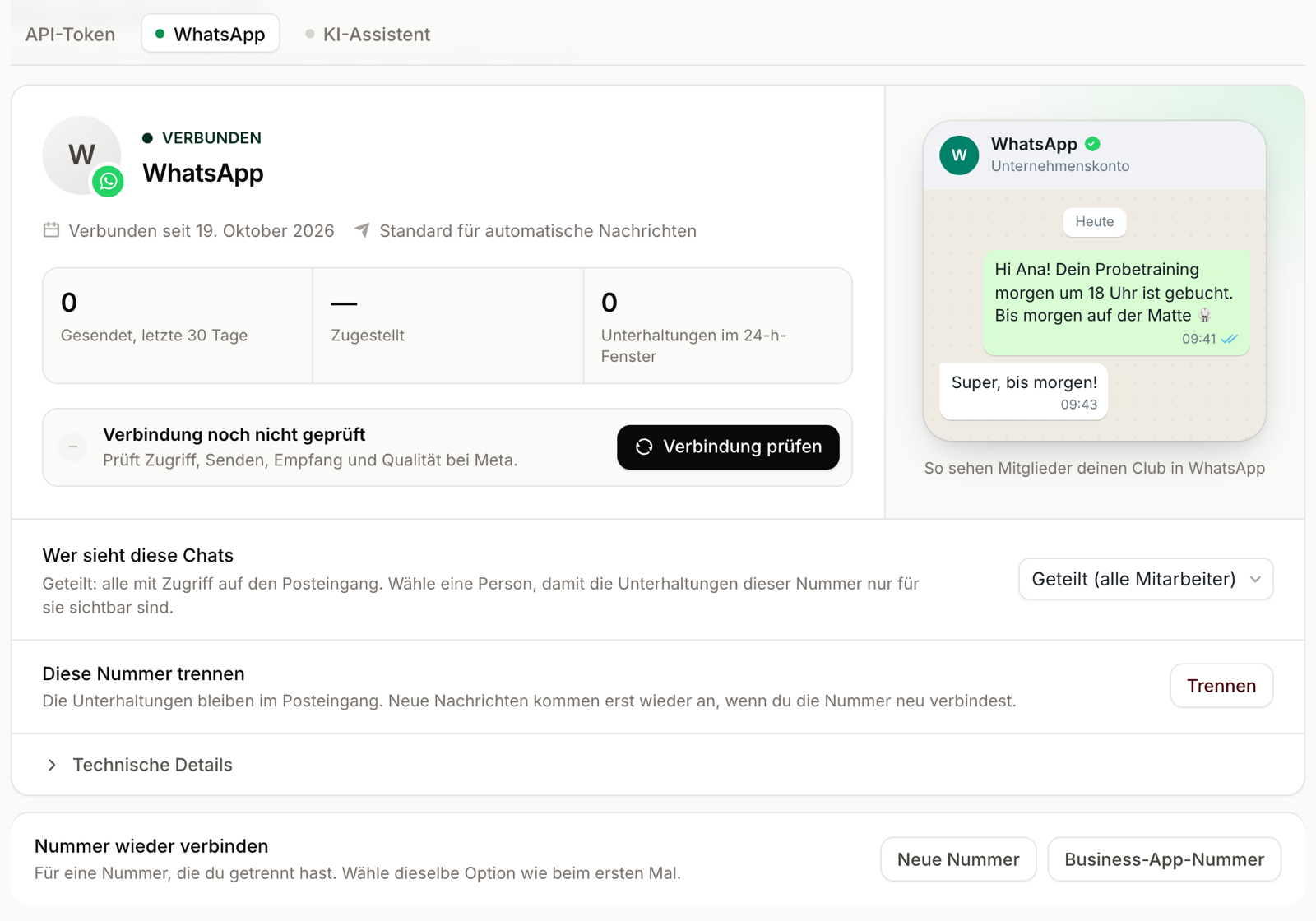
| What | For |
|---|---|
| Check connection | Checks with Meta that sending and receiving work. Details tells you what to do if something is off, e.g. verify the number. |
| Who sees these chats | Shared (all staff) means everyone allowed to see the Inbox. Pick a person and only they see this number's chats. |
| Default for automated messages | Automatic messages go out from this number. With several numbers, pick it with Make default. |
| Disconnect this number | New messages stop arriving. Your conversations stay in the Inbox. The number stays in your account at Meta, so you can connect it again later. |
What WhatsApp messages cost
As of 20 October 2026 – no guarantee
Prices are set by Meta, not by Omoplata. For the messages you have an agreement directly with Meta, and Meta bills you directly. Omoplata is not part of it and cannot guarantee the prices. Current prices: WhatsApp pricing (Meta).
- Replies inside the 24-hour window: the first 1,000 a month are free, then about €0.0456 per reply. Replies from the WhatsApp Business app on your phone cost nothing.
- Templates always cost. What Omoplata sends for you costs, for German numbers:
| Message | Meta category | Price per message |
|---|---|---|
| Class reminder | Utility | about €0.0456 |
| Follow-up, no-show | Marketing | about €0.1131 |
The price depends on the recipient's country. Example for Germany: 40 trial classes a month with a reminder and one follow-up cost about €6.35.
Meta bills a payment method in your Meta account, usually a credit card. Meta offers this at the end of the setup (Add payment method). Or add it later in the Meta Billing Hub. Without a payment method, Meta only delivers the 1,000 free replies and no templates.
AI assistant
The AI assistant answers WhatsApp messages by itself, also at night and at weekends. It uses your club's real data:
- class times, disciplines, prices, address and how the trial class works
- booking, moving and cancelling trial classes
- creating new leads
- telling members about their membership
When it can't help, it hands the chat to your team and leaves an internal note.
Setting up: under Settings > Integrations, AI assistant tab. There you set name, tone, hours, knowledge and which tasks it may do. The assistant needs the accepted AI terms.
In the Inbox the top of the chat shows Bot on or Bot off. One click turns it off or on for this person, also for later chats.
Interested in the AI assistant?
The AI assistant is currently the only feature in Omoplata that is billed separately. We'll tell you what it costs before you switch it on. We set it up together with you and test it with your real questions. Write to hallo@omoplata.de.
Related topics
- Inbox – answer, match and share WhatsApp chats with your team
- Automatic WhatsApp messages – trial class messages by WhatsApp and their templates
- Integrations – other connections