Communication
Automatic WhatsApp messages
Omoplata sends leads their trial class messages not only by email but also by WhatsApp: the reminder before the class, the follow-up afterwards and the invitation when someone didn't show up.
Before you start
Your club's WhatsApp number is connected. See Set up WhatsApp.
Automatic trial class messages
Omoplata can send these messages by WhatsApp:
| Message | When |
|---|---|
| Class reminder (also a second one) | a few hours before the trial class |
| Follow-up (also a second one) | after the trial class |
| No-show | when you mark the lead as "no-show" |
All other messages, e.g. the booking confirmation or payment reminders, still go by email.
Turning on WhatsApp
Create the templates
WhatsApp needs a template approved by Meta for each of these messages. Create them first.
Choose the channel
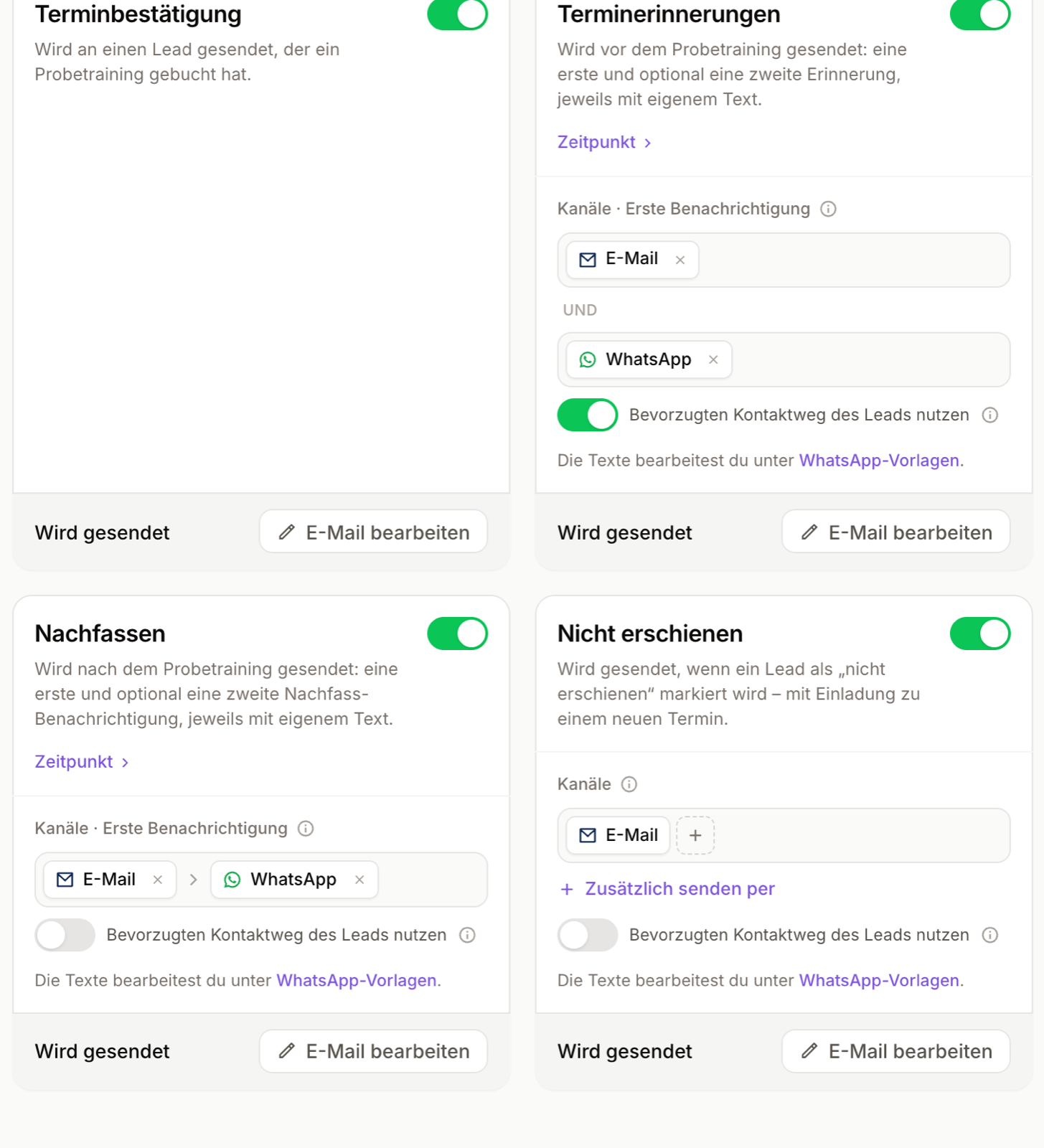
Open Settings > Notifications and the message, e.g. Class reminder. Under Channels, add WhatsApp.
Set the order
An arrow (›) between two channels means "otherwise": Omoplata tries the left one first. If that doesn't work, the next one. With Also send by it goes out both ways.
With Use the lead's preferred contact, the channel the lead picked in the sign-up form comes first.
Good to know
- Quiet hours: between 9 pm and 8 am Omoplata sends no WhatsApp messages. They go out in the morning.
- Follow-up and "no-show" count as promotional for WhatsApp. They only go by WhatsApp to leads who agreed on the sign-up form. If someone objects later, click Record opt-out on the lead under WhatsApp & SMS. The class reminder always goes out.
- No template, no WhatsApp: if the approved template is missing, or the person has no WhatsApp, Omoplata uses the next channel, usually email.
- Every message sent also shows up in the Inbox.
Templates
When you message someone first, WhatsApp requires a template: a text Meta has checked beforehand. For the automatic messages, Omoplata prepares the templates. You adjust the text and submit it to Meta.
Creating templates
Open the list
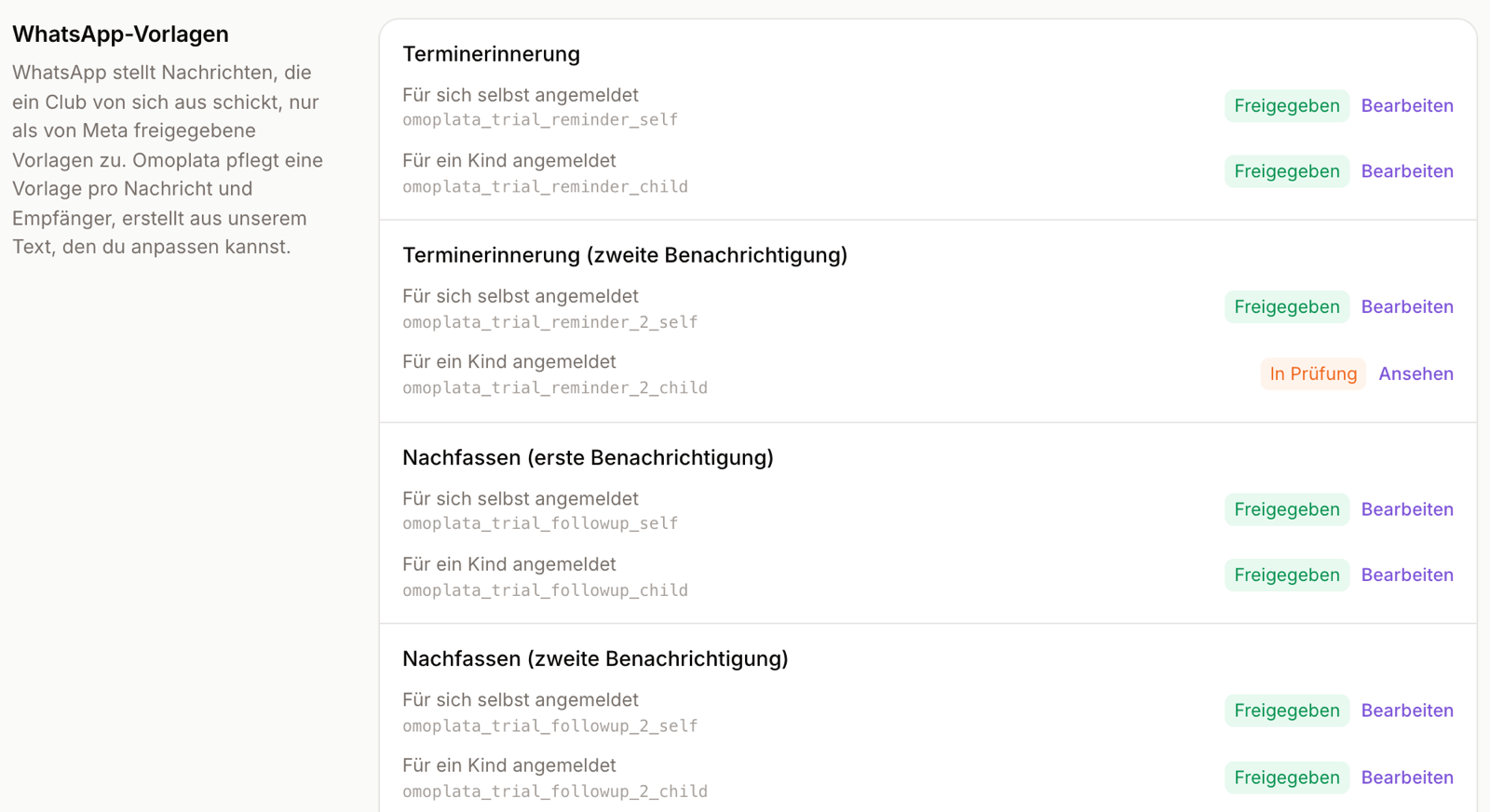
Under Settings > Notifications you find the WhatsApp templates section. Each message has two templates: Signed up for themselves and Signed up for a child.
Adjust the text
Click Create the missing templates. Omoplata suggests a text. Change it as you like. Placeholders such as first name, class, date and time are filled in by Omoplata when sending. On the right you see how the message looks on a phone. You can attach a short video.
Submit to Meta
Click Submit to Meta. The template then shows In review. Meta usually checks within minutes to hours.
Check the status
Approved: Omoplata uses the template right away. Rejected: hover over the badge to see why. Change the text and submit again. Check status asks Meta for the latest state.
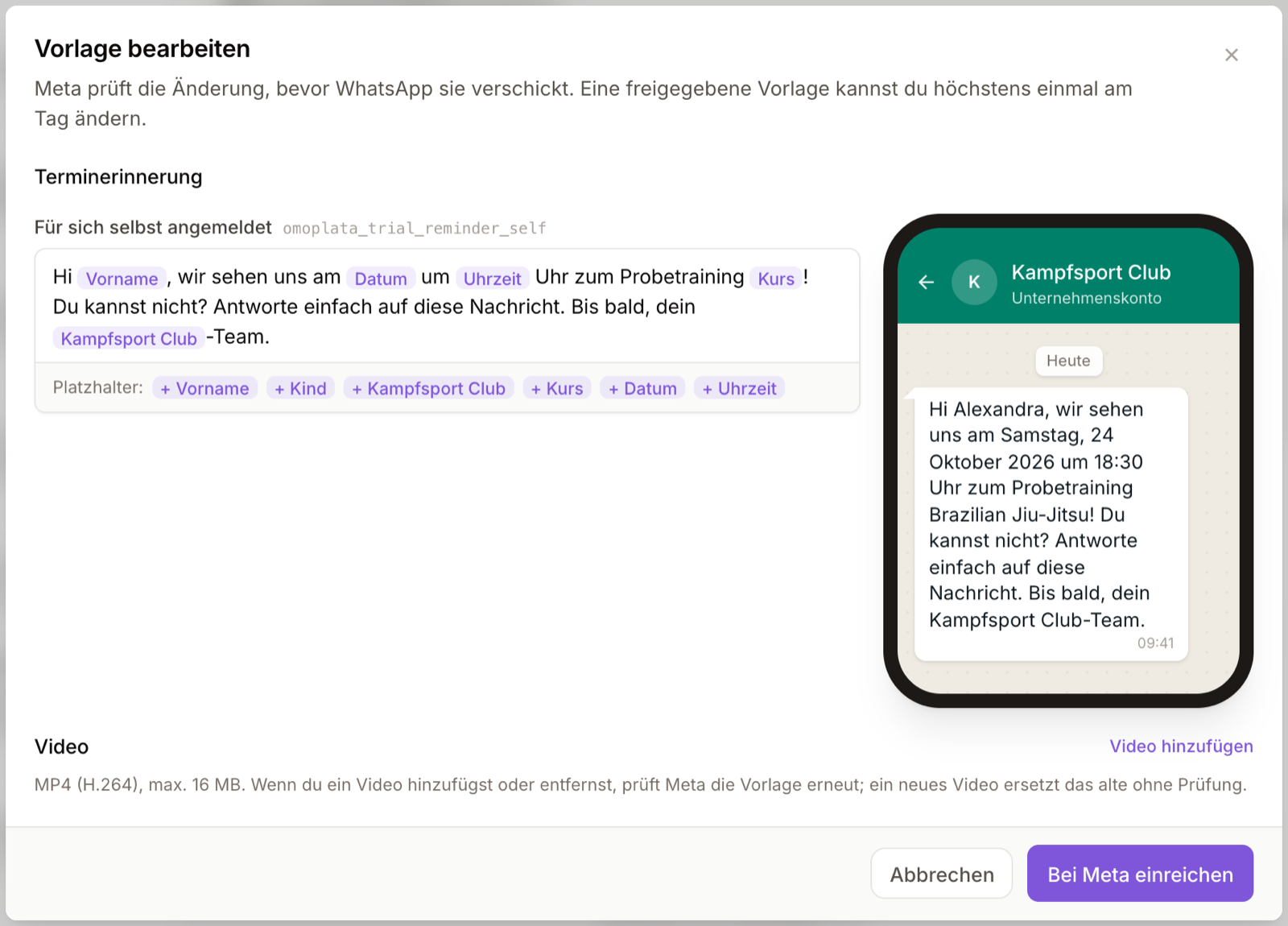
You can change an approved template at most once a day. Until the change is approved, Omoplata keeps using the old version.
So Meta approves the template
At most 1,024 characters. No placeholder at the very start or end, and never two placeholders right next to each other. Omoplata checks this before you submit.
Want more templates, e.g. for your own announcements? Write to hallo@omoplata.de and we'll set them up with you.
Related topics
- Set up WhatsApp – connect the number and what the messages cost at Meta
- Trial settings – when reminders and follow-ups go out
- Notifications – the email texts of the automatic messages
- Inbox – replies to these messages