Plans & billing
Plans & pricing
Plans are the membership offerings your club provides to members. Each plan represents a core service -- for example, "Brazilian Jiu-Jitsu", "Muay Thai", or "All Access". Plans are the foundation of your billing system: they define what members pay, how often, and for how long.
Navigate to Settings > Plans to manage your plans.
Understanding the plan structure
Omoplata separates plans into three layers to give you maximum flexibility:
Plans
A plan is your top-level offering. It has a name and is associated with a user demographic (Adults, Kids, or Family). The demographic determines behavioral rules like whether a guardian is required, who can self-pay, and which members see the plan during sign-up.
Plan prices
Each plan can have multiple pricing options. A price defines:
| Field | Description |
|---|---|
| Amount | The recurring fee (e.g., 59.00 per month). |
| Charge frequency | How often the member is billed (monthly, quarterly, annually, etc.). |
| Contract duration | The minimum commitment period (e.g., 12 months, 24 months, or no minimum). |
| Age group | If the plan's demographic uses age groups, each price can target a specific age bracket. |
| VAT rate | The tax rate on this price. You pick from your country's rates; the default from billing settings comes pre-selected. |
This means a single "Kids BJJ" plan can offer different prices for "Mini Kids (4-6)", "Junior Kids (7-10)", and "Teens (11-15)" -- all under one plan.
Special prices
Plan prices can be marked as special prices for targeted discounts. A common example is a student discount: the member is treated as an adult for all behavioral rules, but qualifies for a reduced monthly rate. Special prices appear in a separate "Special Prices" section in the plan selection UI.
A special price is for a group of people. For a payer with several memberships -- siblings, a parent and a child -- use the multi-membership discount instead.
Creating a plan
Click the Create plan button to open the creation form. You will need to provide:
- Plan name -- A clear, descriptive name such as "BJJ Adults" or "Kids Judo".
- User demographic -- Select the target group (Adults, Kids, Family). This cannot be changed after creation.
- Plan prices -- Add at least one price. For each price, set the amount, charge frequency, and contract duration. If the demographic has age groups, select the applicable age group for each price.
Simplified selection
If there is only one option for a given pricing dimension (e.g., one contract duration, one charge frequency, one age group), the system automatically selects it and shows a simplified view during member sign-up. This reduces friction for members when your pricing is straightforward.
The plans overview
The plans page shows each plan as a card with:
| Field | Description |
|---|---|
| Plan name and demographic | The plan's name and which member group it serves. |
| Active memberships | Profile pictures and count of members currently on this plan. |
| Pricing table | All price options showing the amount, frequency, contract duration, active membership count per price, and any special price labels. |
| Additional fees | Any fees attached to this plan (see Fees). |
| Growth chart | A small sparkline showing membership growth over the last six months. |
Editing a plan
Click the Edit button on any plan card to modify its details. You can update the plan name, add or remove prices, and adjust amounts and terms. Changes to prices affect new memberships only -- existing members keep the price they signed up with.
The VAT rate is the exception: change it on a price and the new rate applies to existing memberships from their next charge. Invoices already issued are left alone.
Deleting a plan
A plan can only be deleted when it has no active memberships. If any price under the plan has active members, the delete button is hidden and the system prevents deletion. To remove a plan with active members, first cancel or migrate those memberships to a different plan.
Closing a plan to new members
If you want to keep existing memberships on a plan but stop offering it to new sign-ups, toggle the Accepts new members flag to off. The plan will remain valid for current members but will not appear in plan selection lists for new memberships.
Multi-membership discount
When one person pays for several memberships -- a parent with two children, a mother who trains herself and pays for her son -- many clubs give the second and third membership a lower price. The multi-membership discount does that for you: as soon as you create a membership for a payer who already pays for other active memberships, Omoplata suggests the reduced price.

Setting the club-wide rule
- Open Settings > Plans. The Multi-membership discount card sits above your plans.
- Click Edit.
- Add one tier per step with Add tier:
- From membership no. -- the position the tier starts at. 2 is the payer's second membership.
- Membership discount -- a Percentage or a Fixed amount off the plan price.
- Fee discount -- optionally the same for sign-up and recurring fees, or No fee discount.
- Click Save.
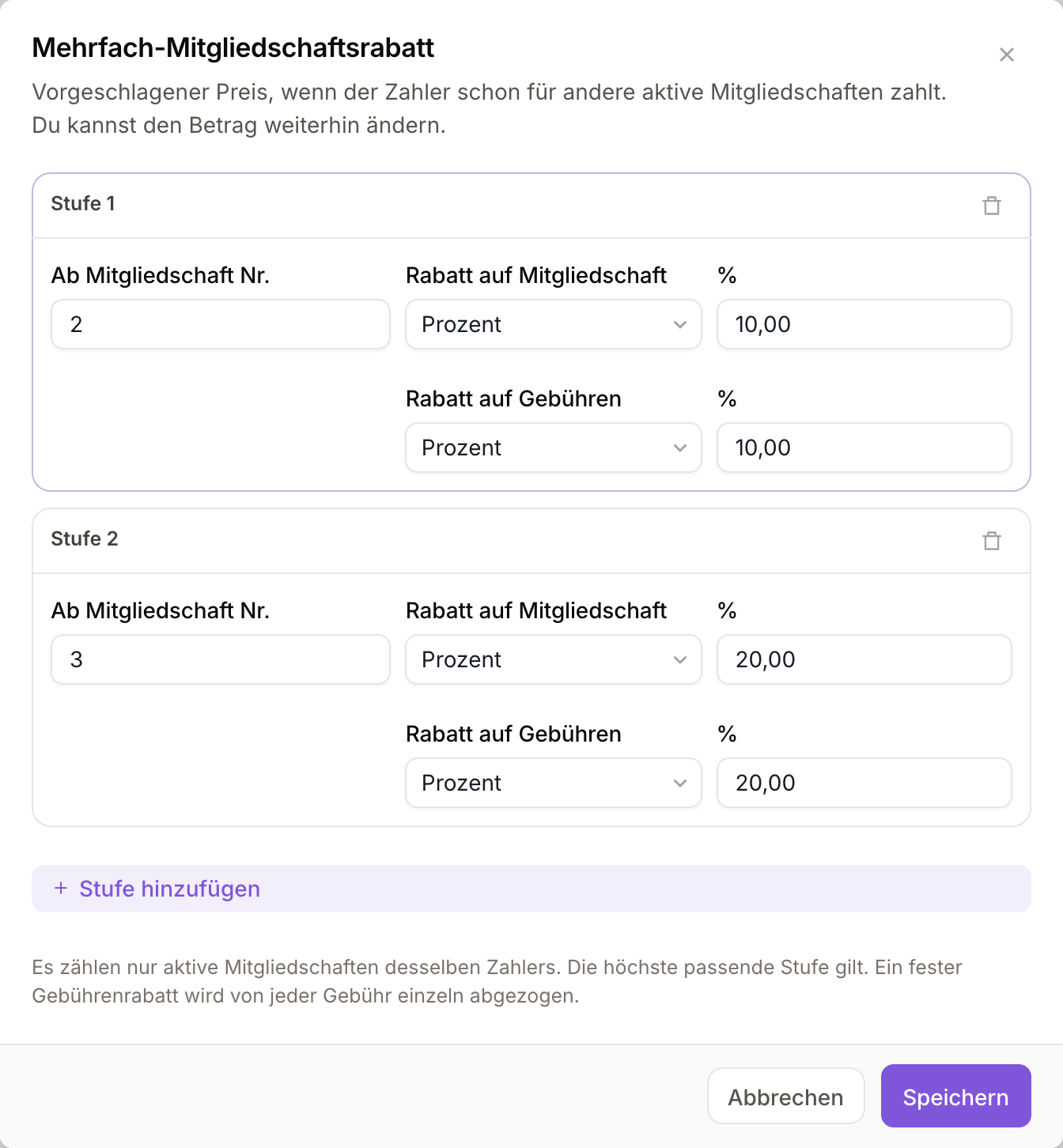
The highest tier that applies wins. With "from no. 2: 10 %" and "from no. 3: 20 %", a payer's second membership gets 10 % and the third and every later one 20 %. A fixed fee discount is taken off each fee separately.
A different rule for one plan
Every plan card has a Multi-membership discount row showing which rule applies to it. Click Edit next to it and choose:
| Option | Effect |
|---|---|
| Club default | The plan follows the club-wide rule. |
| Own tiers | The plan gets its own tiers, for example a smaller discount on an already cheap plan. |
| No discount | No discount is suggested for this plan -- useful for plans that are already reduced. |
When you create a membership
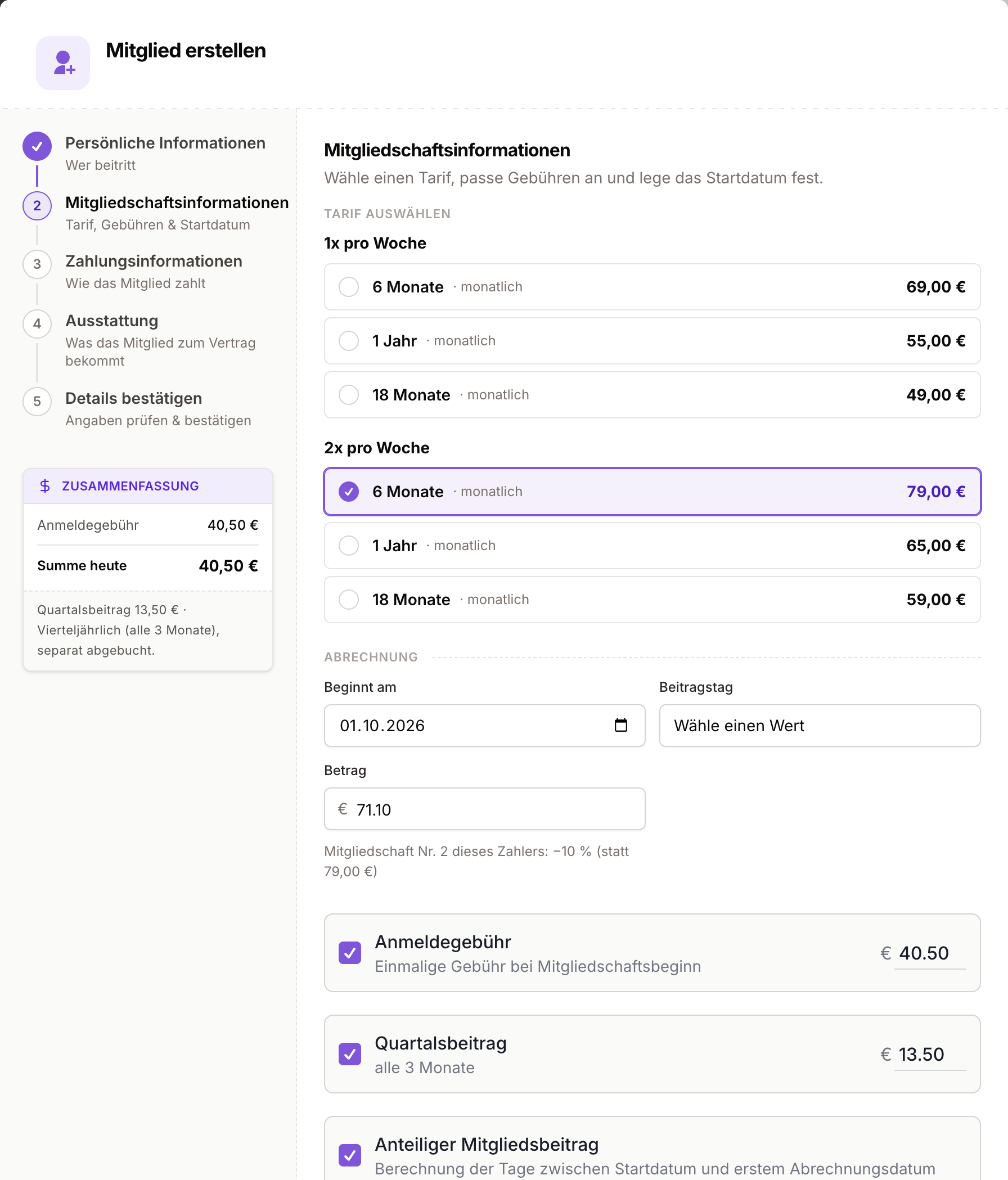
The discount appears wherever your team creates a membership: registering a new member, adding a membership on a member's profile, converting a lead, or setting up a new contract at renewal. Once the payer and a price are chosen, the Amount is pre-filled with the reduced price and a line below it says why, for example "Membership no. 2 of this payer: −10 % (instead of 79.00 €)". Fees are pre-filled with their discount as well.
Good to know:
- It is a suggestion. You can overwrite the amount, and what you save is what is charged.
- Only active memberships of the same payer count, including the payer's own. Paused and ended memberships are not counted, and neither is one that is still waiting for the member's signature -- so when you register two siblings in one go, the second is only suggested the discount once the first contract is signed.
- Running memberships don't change. The discount is worked out when a membership is created. Introducing or changing the rule leaves existing prices alone, and a second membership keeps its price when the first one ends.
- It works on the price you pick, including a special price. If a discounted special price should not be reduced further, overwrite the amount or set that plan to No discount.
Not sure whether you need this or a special price? See Special prices versus the multi-membership discount.
Plan limits
Plans can include usage limits that restrict how members use the club. Common limits include:
| Limit | Description |
|---|---|
| Attendance per week/month | Maximum number of classes a member can attend in a given period. |
| Sports limit | Maximum number of disciplines a member can join. |
| Time slots limit | Maximum number of weekly time slots a member can select. |
When a membership is created, the limits defined on its plan are copied to the membership. These limits are enforced when members try to book classes or indicate attendance through the portal.
Membership selection modes
In General settings, you can configure how members pick their training schedule when signing up:
| Option | Description |
|---|---|
| Sports | Members choose which disciplines they want to train. |
| Classes | Members choose specific classes. |
| Time slots | Members choose specific weekly occurrences. |
This setting works together with plan limits to control how flexible or structured your class assignment model is.
Demographics and age groups
User demographics
Demographics are fixed categories that drive behavioral rules:
| Demographic | Description |
|---|---|
| Adult | Can self-pay, full platform access. |
| Kid | Requires a guardian as payer, limited platform access. |
| Family | One payer with multiple participants. |
Age groups
Age groups are configurable age ranges within a demographic. They affect pricing and class eligibility. For example, a "Kids" demographic might have:
- Mini Kids (4-6 years)
- Junior Kids (7-10 years)
- Teens (11-15 years)
Each age group can have its own price under the same plan. The system uses the member's date of birth to automatically match them to the correct age group and price.
Age group pricing
The combination of contract duration, charge frequency, and age group must be unique within a plan. This prevents duplicate pricing configurations and ensures the system can always determine the correct price for a member.